Step 1
Go to the access application
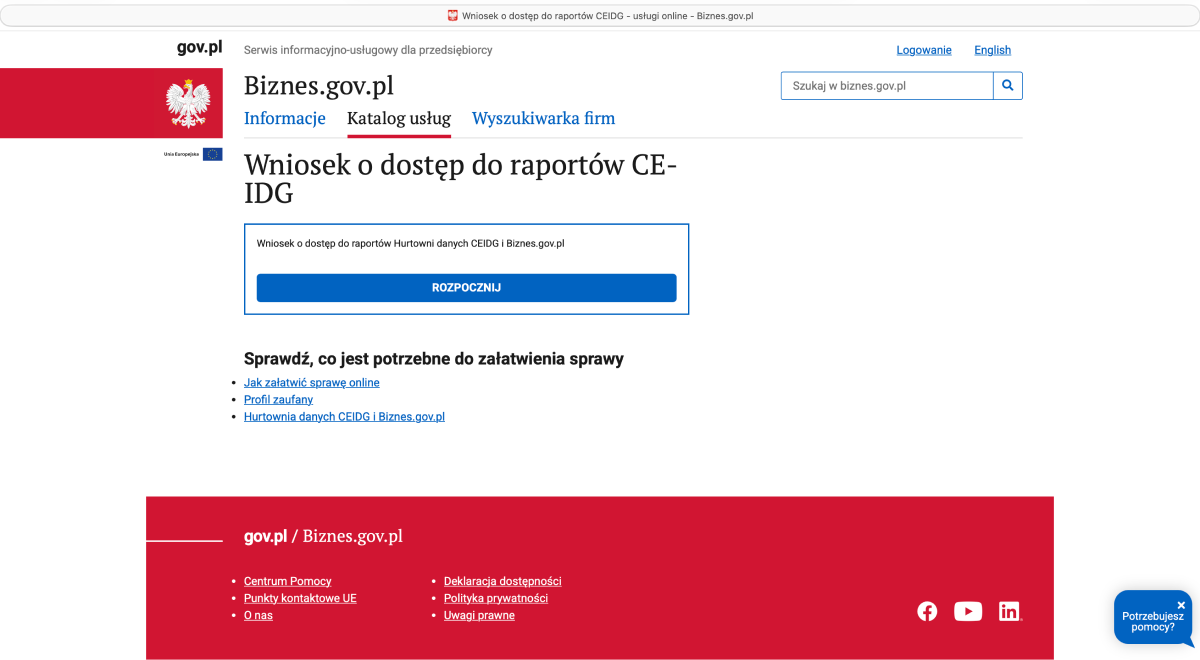
Open the “Wniosek o dostęp do raportów CEIDG” (Application for access to CEIDG reports) service and click ROZPOCZNIJ (Start).
Open Biznes.gov.plA step-by-step guide that shows you how to get an API key from CEIDG and connect it to the Administy system. The whole process takes a few minutes — all you need is an account on Biznes.gov.pl and an electronic signature.
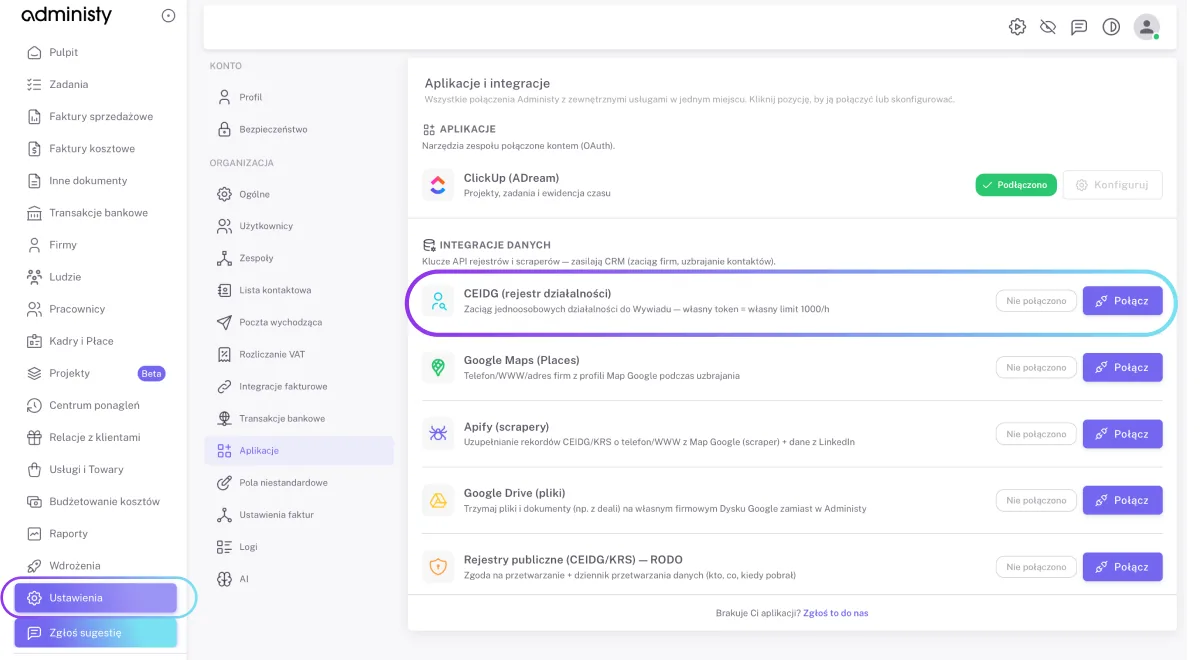
••••••••••••••••••••••••Administy → Settings → Applications → CEIDG (business register)You submit and sign the application for access to CEIDG reports.
Open the “Wniosek o dostęp do raportów CEIDG” (Application for access to CEIDG reports) service and click ROZPOCZNIJ (Start).
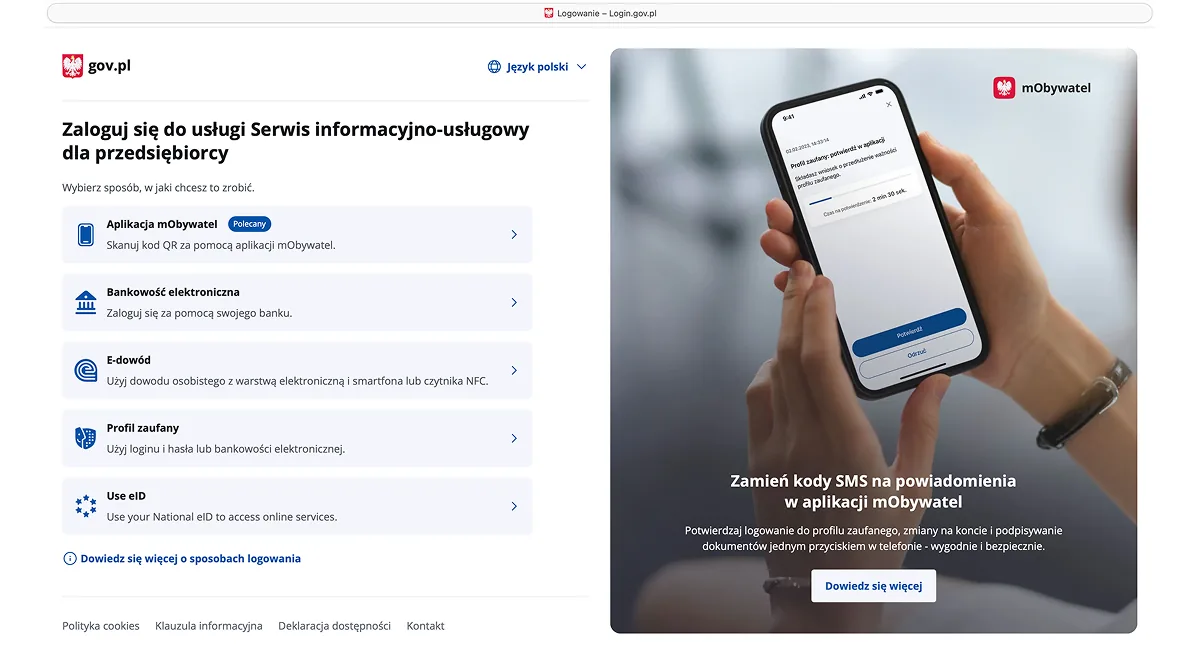
Open Biznes.gov.plLog in, for example with mObywatel, online banking, e-Dowód (the electronic ID card) or Profil Zaufany (Trusted Profile).
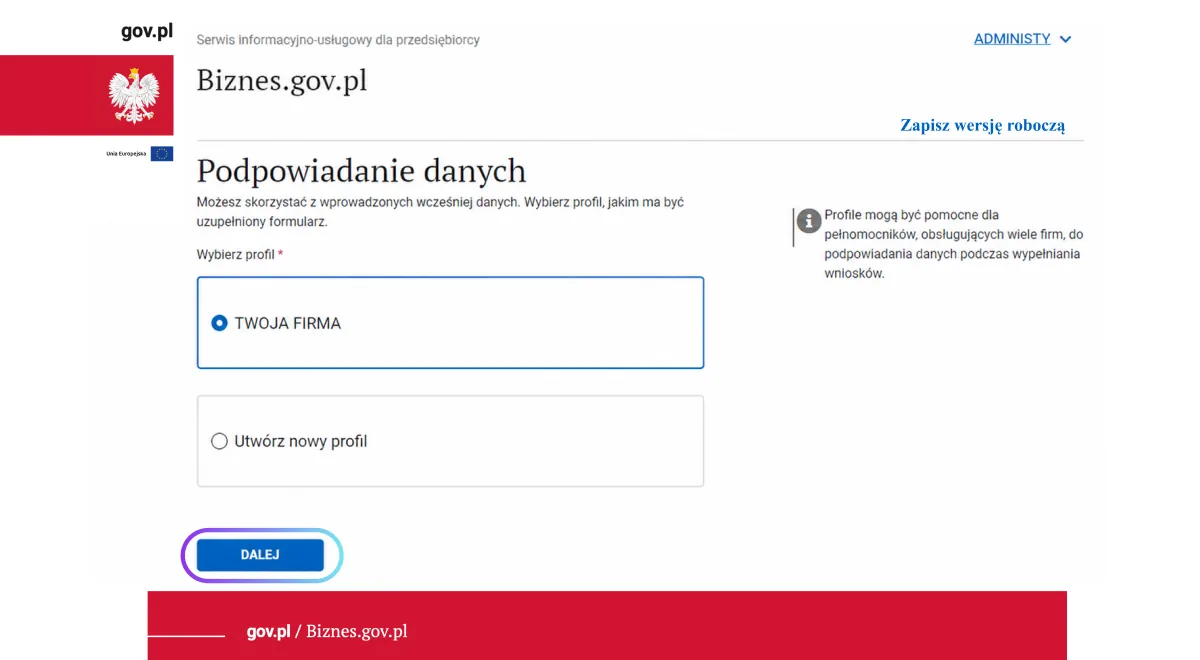
Choose an existing company profile or create a new one. Click DALEJ (Next).
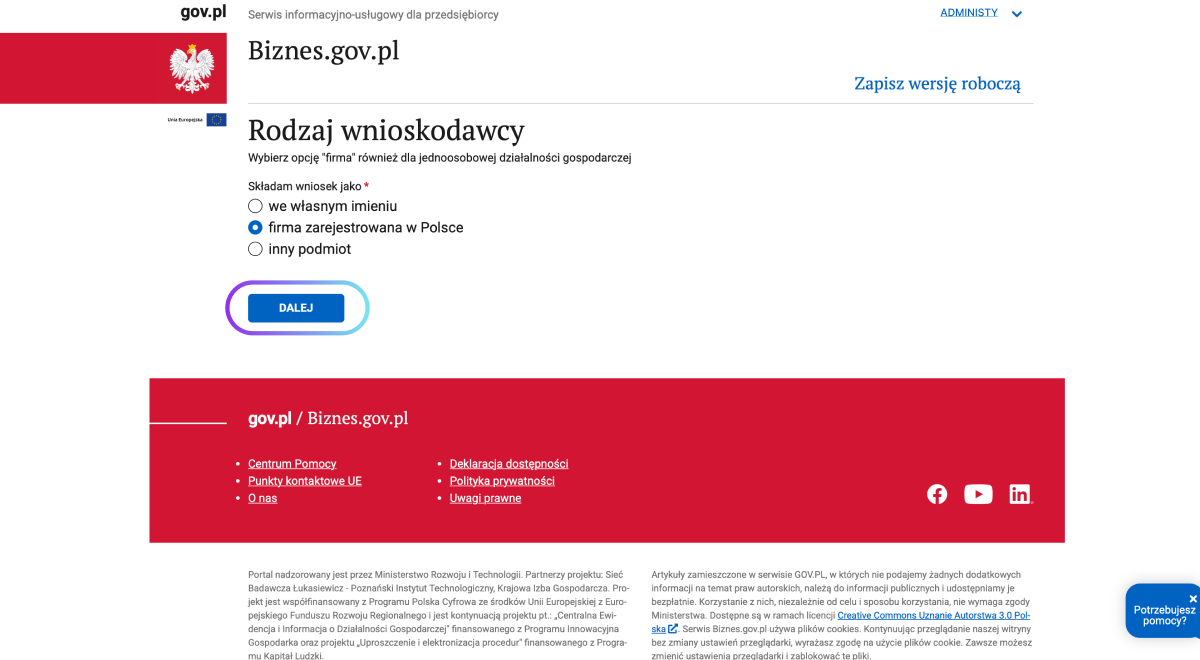
If the access is to be used by a company, choose firma zarejestrowana w Polsce (company registered in Poland).
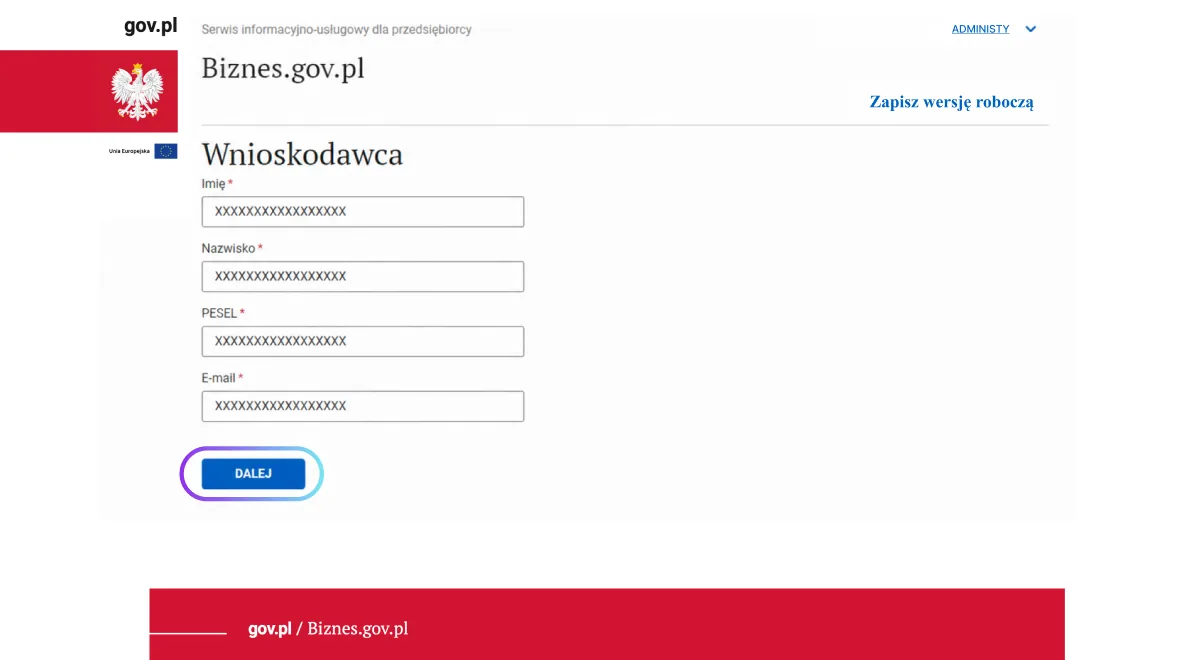
Check or fill in your first name, surname, PESEL and email address. Click DALEJ (Next).
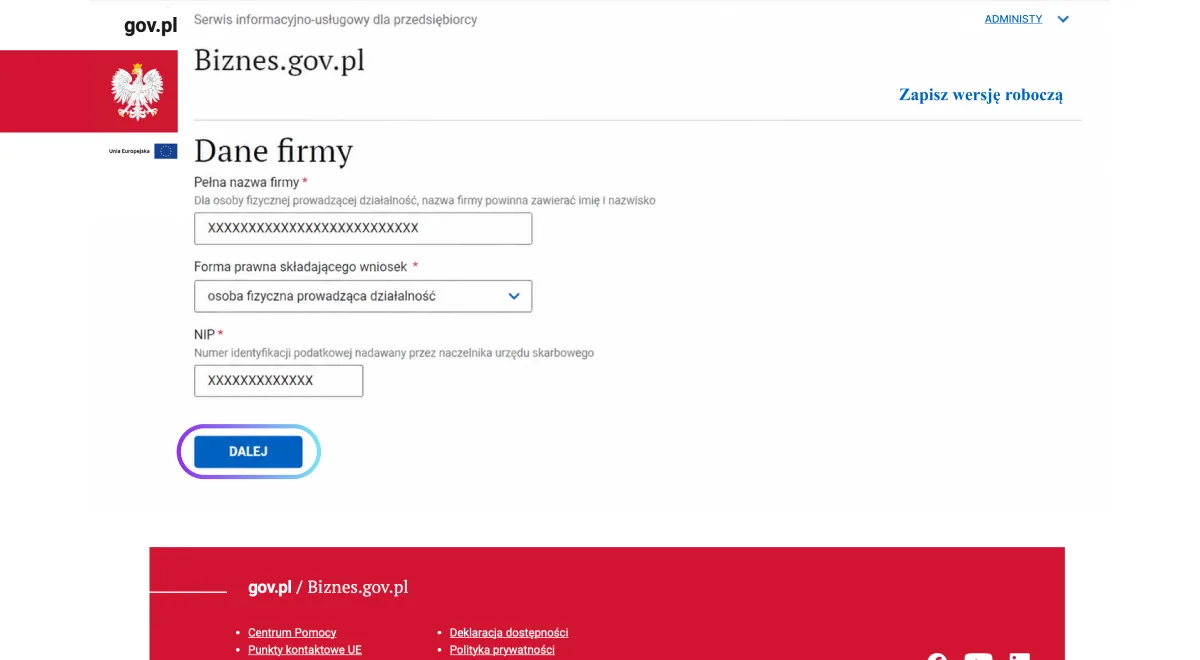
Enter the full company name, legal form and NIP. Click DALEJ (Next).
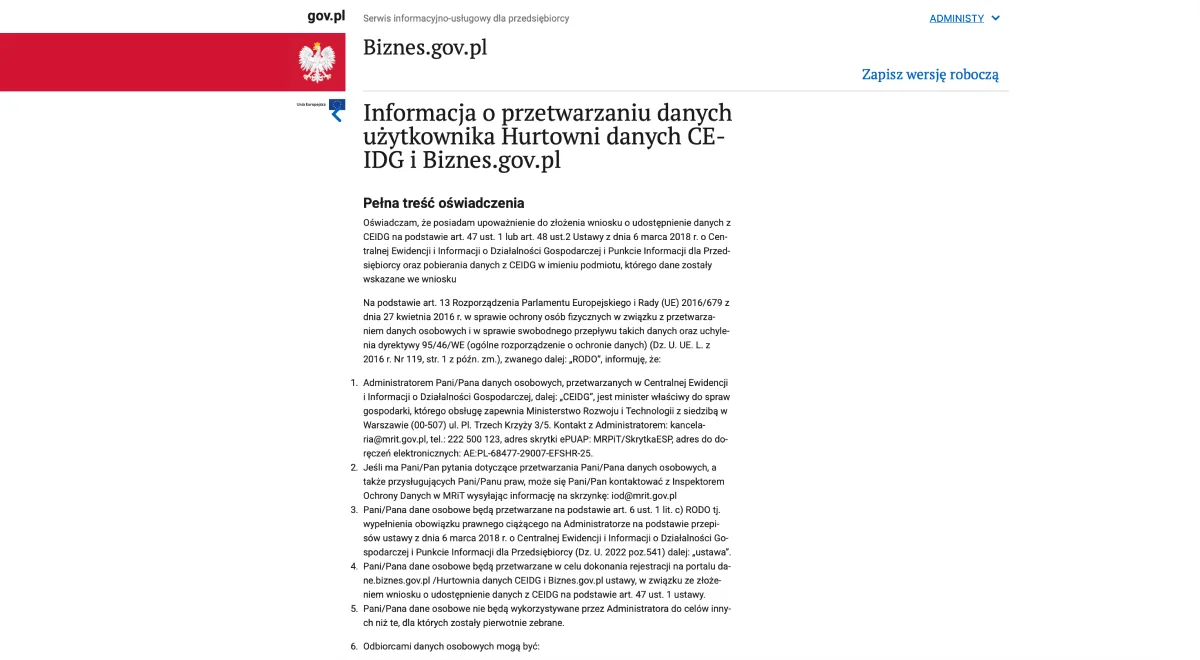
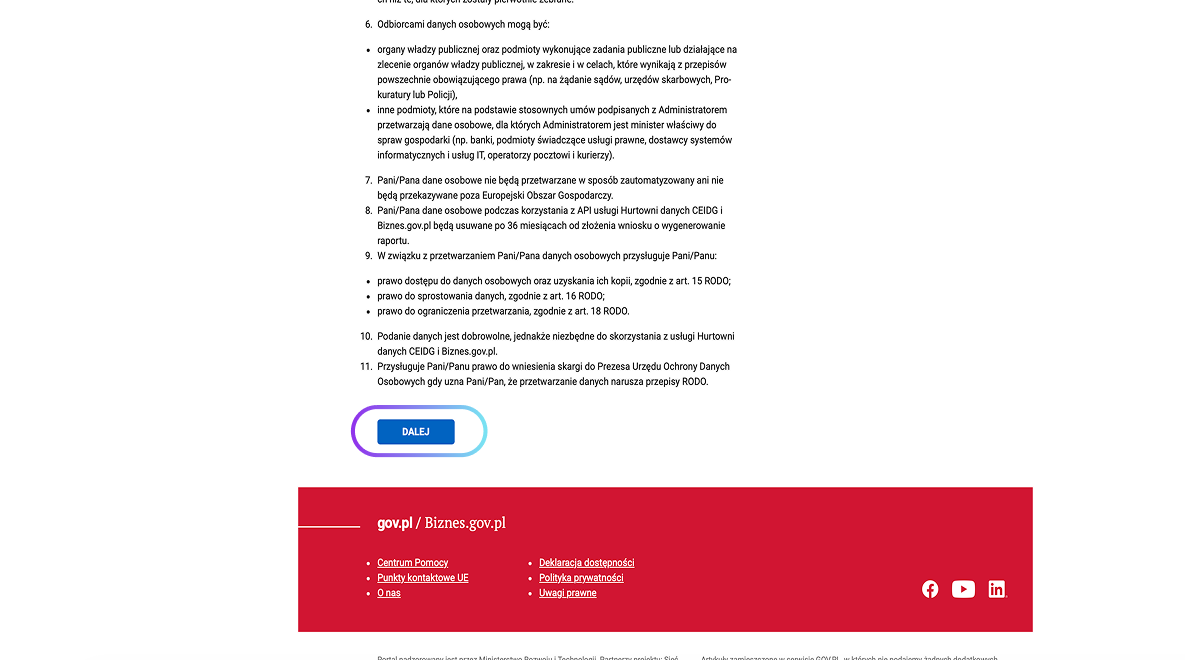
Read the text of the statement and the information on data processing. Then click DALEJ (Next).
Important: if you are applying on behalf of a company, you declare that you have the proper authorisation to submit the application and to download data from CEIDG on behalf of the named entity. Do not go further if you do not have such authority.
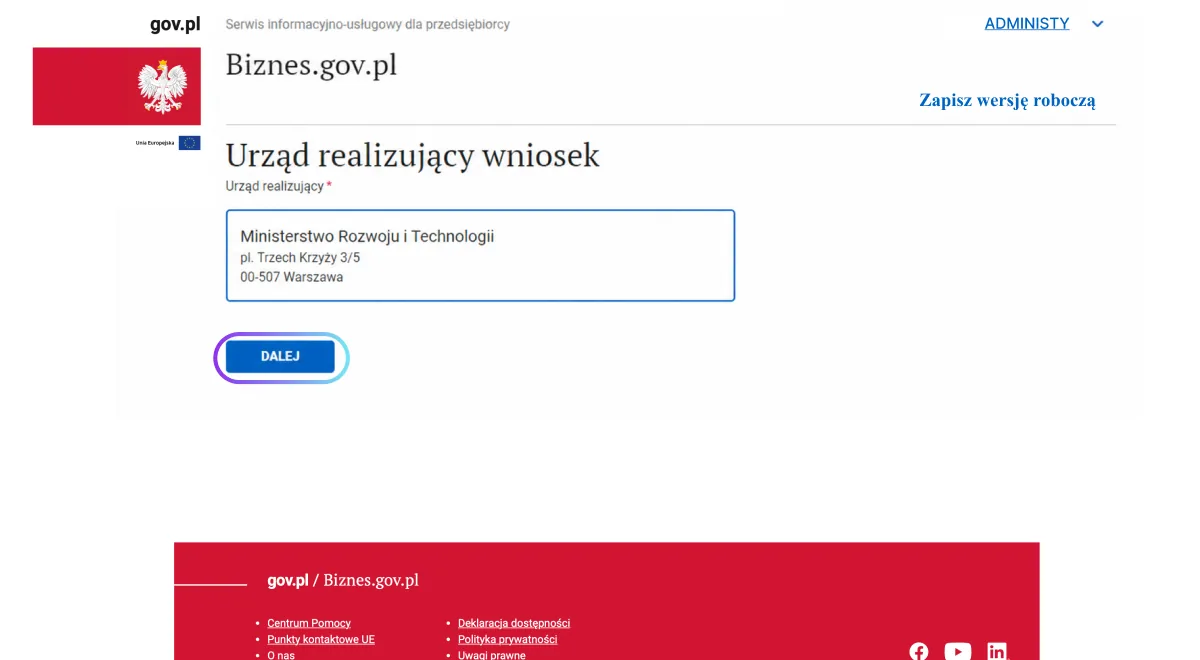
The system will indicate: the Ministry of Development and Technology (Ministerstwo Rozwoju i Technologii), pl. Trzech Krzyży 3/5, 00-507 Warsaw. You do not need to choose anything. Click DALEJ (Next).
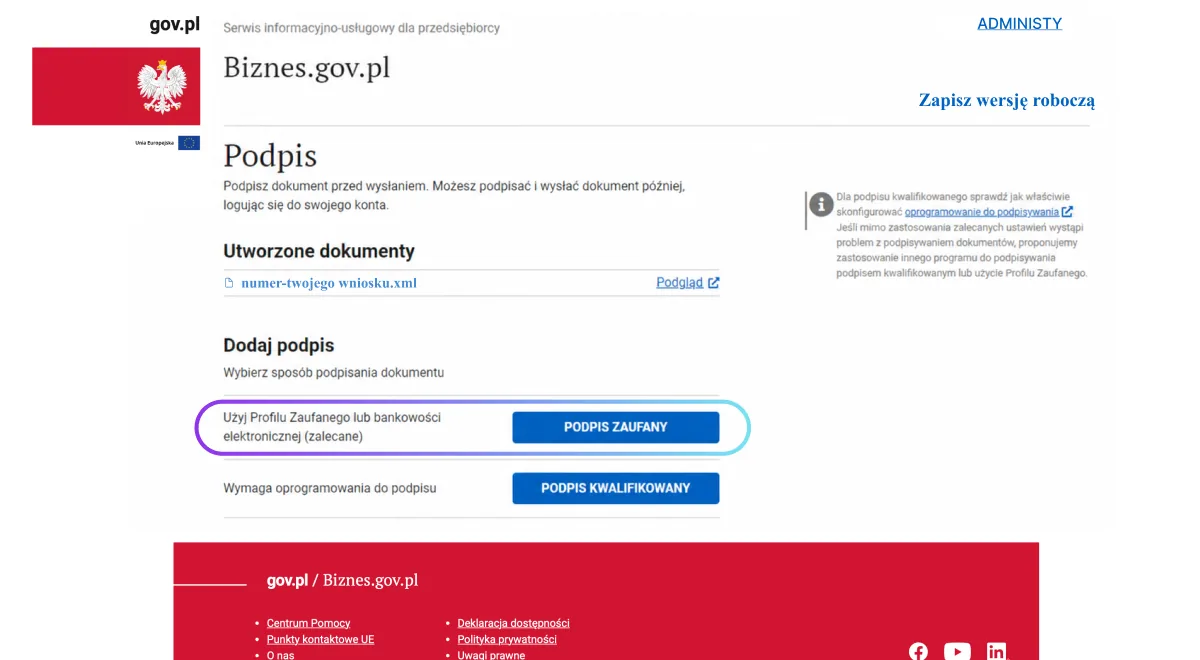
Choose one of the available methods: PODPIS ZAUFANY (Trusted Signature) or PODPIS KWALIFIKOWANY (Qualified Signature) and go through the document signing process.
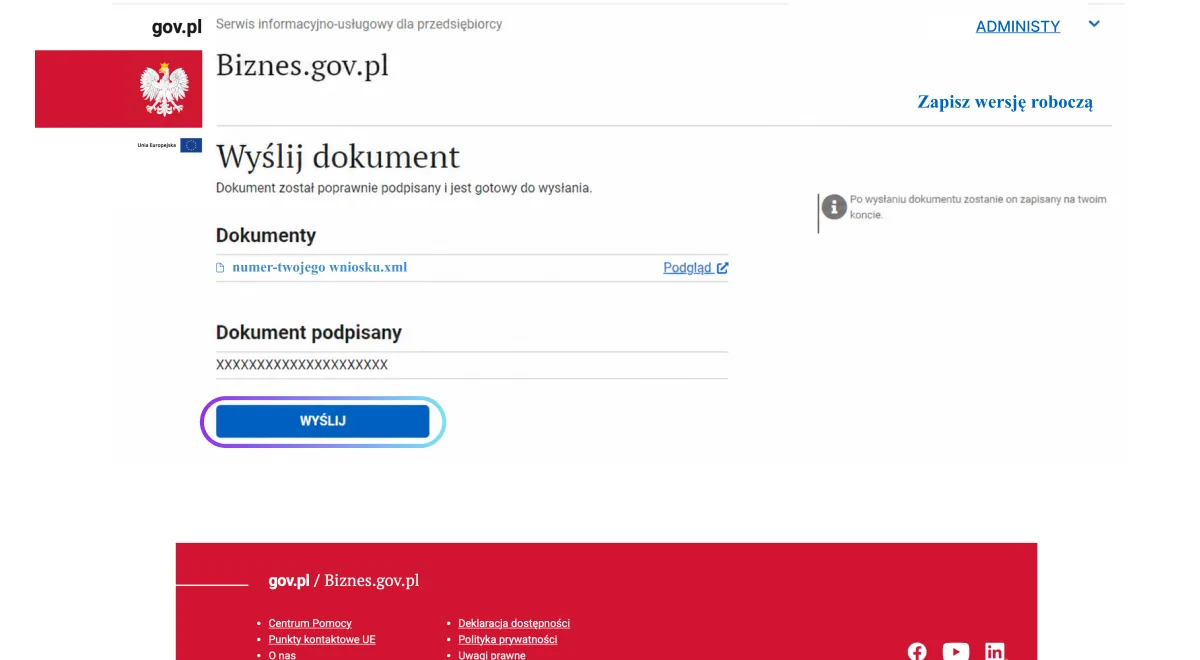
After signing, you will see a message that the document is ready to be sent. Click WYŚLIJ (Send).
Important: signing the document does not mean it has been sent yet.
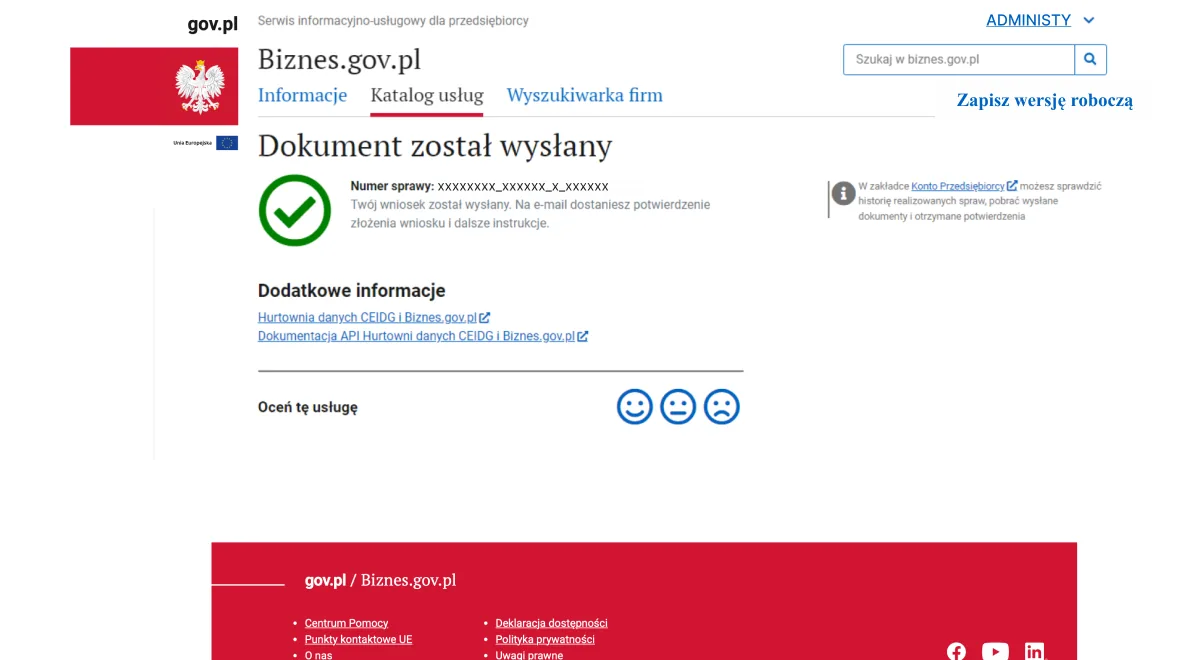
After the application is sent correctly, you will see the message “Dokument został wysłany” (The document has been sent) and a case number. At the email address given in the application, you will receive a confirmation that the application was submitted and further instructions.
Once access is granted, you receive a key to the CEIDG Data Warehouse API.
After access is granted, you will receive the information needed to use the CEIDG Data Warehouse API. Do not share your key or access token with unauthorised people. Copy the key.
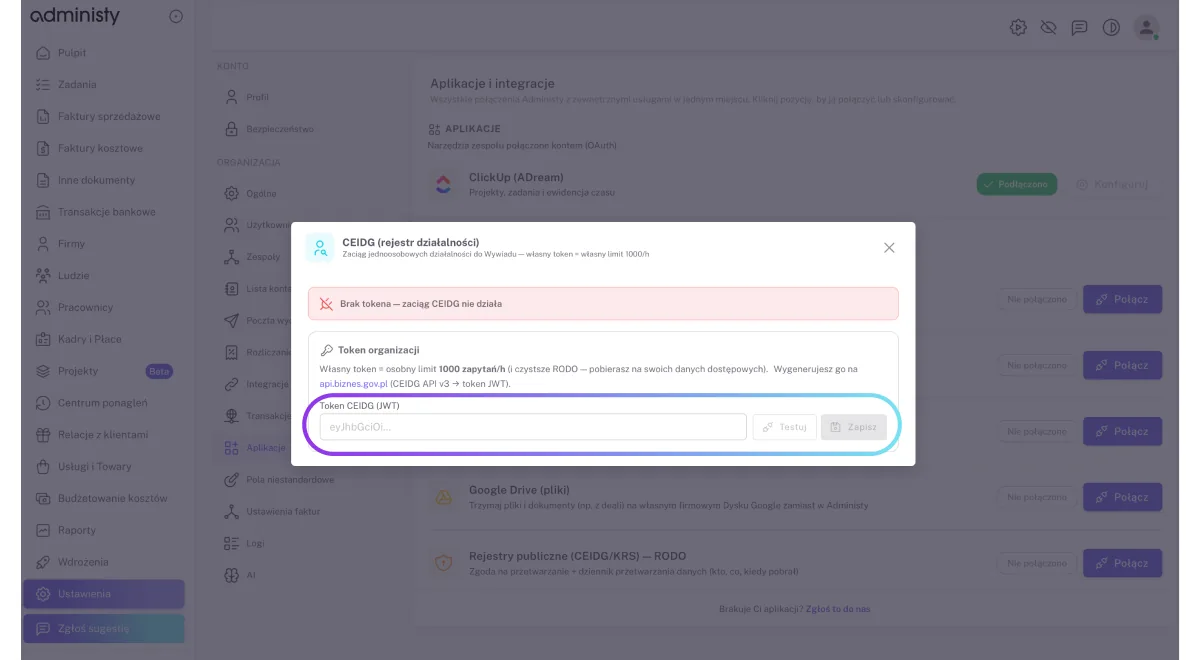
You paste the key into the Administy settings and save.
Log in to Administy, go to ustawienia (Settings), and then to aplikacje (Apps). In the list on the right you will see applications and integrations. Press the Połącz (Connect) button next to CEIDG (rejestr działalności) (CEIDG, the business register).
A window will appear. Paste the API key you copied and press ZAPISZ (Save). Done.
After you save the key, the “CEIDG (business register)” integration is connected in the Administy settings, in the applications section. Remember not to share the key or the access token with unauthorised people.
The screenshots are for illustration only. The appearance and course of the process on Biznes.gov.pl may change as the service is updated. In case of discrepancies, follow the current messages and instructions displayed on Biznes.gov.pl.
Write to us and we will walk you through setting up the CEIDG integration and the other connections in Administy.